 montana.org - Welcome Glastonbury Property Owners
This website is an independent and interactive information resource and service provider for Glastonbury landowners.
We are not affiliated with any Glastonbury governing body - Updated
Wednesday, August 19, 2026
How To Create a Sunwest - GLA Account and Make a Payment
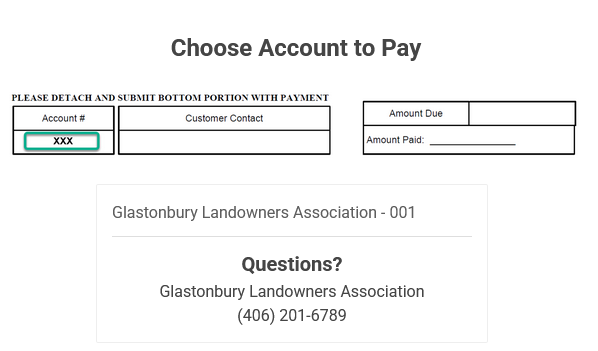
Choose Account To Pay - The image to your right is the first page you should see. Setting up an account only takes 5 to 10 minutes. It will provide you an easier and quicker way to pay assessments and avoid late penalties and interest.
Sunwest will provide a FREE GLA account for you. You do NOT need to be a Sunwest customer or have a checking account with them. Sunwest offers payment reminders, accepts all major credit and debit cards, and accepts e-check payments from your current checking account. Best of all, Sunwest charges much lower fees than PayPal. Just so you know, you will need to have your 3-digit GLA account number readily available. One is on the bottom left hand corner of your assessment statement tear-off tab.
Easily locate your 3-digit account number by entering your last name or parcel number in the below search box.
SEARCH:
Results: Owner's name, parcel and 3-digit account number
You may submit or view payments, change card and e-check information, schedule payments, and receive email or text reminders via your free GLA account. All of your information and payment transactions are stored on Sunwest's secure servers.
The Sunwest payment portal is used by many businesses. Hover your mouse over the middle text line "Glastonbury Landowners Association - 001". Mouse click to continue.
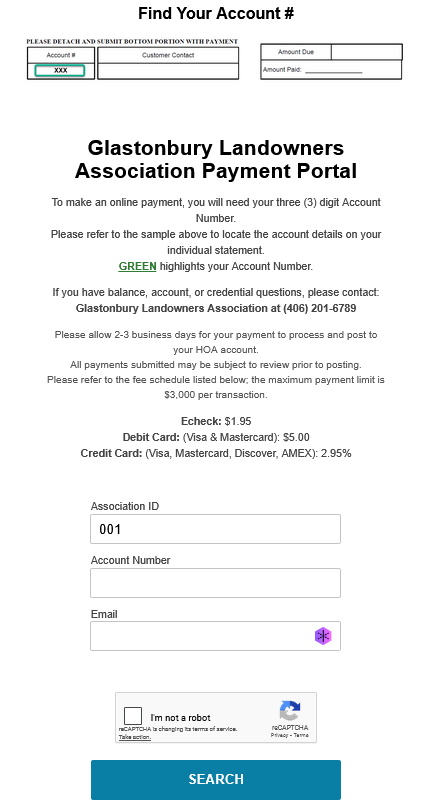
Find Your Account Number - The image to your left is the second page you should see. Please note that you will need your 3-digit GLA account number to create an account and make a payment. Your GLA account number is on the lower left corner of your statements on the bottom tear-off tab. Or you can locate it with the above search box. The Association ID is 001 and already entered. You only need to enter your 3-digit GLA account number and your primary email.
If you have multiple email addresses, it is best to keep a record of the one you are using. Sunwest keys your account to your email and GLA account number.
Check the "I'm not a robot box". Complete a captcha or two and then click on the Search button.
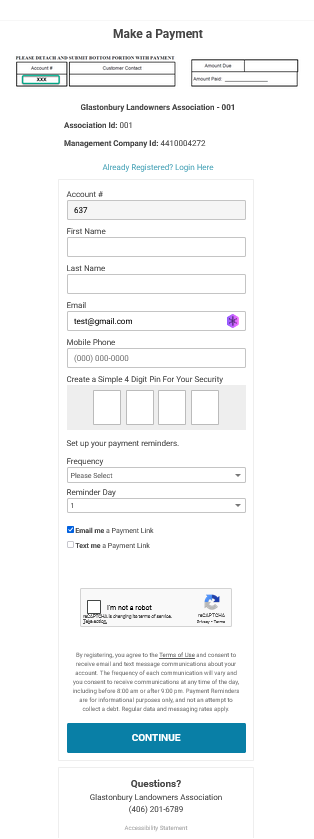
Make A Payment - The image to your right is the third page you should see. If you have registered your GLA account with Sunwest previously, please click the line "Already Registered? Log in here."
If this is your first time using the Sunwest - GLA payment portal, please fill in your first name, last name, and an optional mobile phone. Then add a 4-digit PIN. It could be the month and day you were born, the year you were born, the first or last 4 digits of a number you have memorized, etc.
Set your Payment Reminder Frequency to Annual and the Reminder Day to January 15. That is when GLA assessment statements are generally mailed. Then check the email and/or text boxes. You will receive a courtesy reminder email/text on January 15th of the following year, reminding you that GLA assessments are soon due. For your convenience, a link to your account will be included.
Check the "I'm not a robot box". Complete a captcha or two and then click on the Continue button.
Payment Amount - The next screen will prompt you for a payment amount and method. Please fill in an amount. Then click on the "+Debit Card", "+Credit Card", or "+Manual Bank" button. The "Manual Bank" button offers the lowest fee and is used for ACH or e-checks. You must have a checking account to use it.
Please ignore the "Make Recurring" option, as this does not mesh well with GLA quarterly payment dates.
You will next be brought to a Method of Payment screen. You will be prompted for the payment amount, card or check numbers, and other pertinent information. You may save this payment method to your Sunwest - GLA account. Click the "Submit Payment Method" button when you are done.
If you used a credit or debit card, the next screen will prompt you for the 3-digit CVV or card security code. You may also choose another payment method on this screen. Click the "Review Payment" button.
The next screen is the Confirm Payment page. Your payment amount that goes to the GLA, the convenience fee, the total charge, and the method of payment are displayed. When you are satisfied, click the "Submit Payment" button.
The next screen will confirm your payment. One was also sent to your email. You can set up an autopay for the next year from this page. But if assessments increase, the amount will not be enough. At the bottom of the page are links to "My Portal," which is your Sunwest - GLA account, and "My Payment History," which is your account payments page. Both are helpful resources. We urge you to visit My Portal, bookmark the page, and explore your free account. You can make and view payments, change payment methods, change your name and email, reset your PIN, and even switch to Spanish.

Was this page helpful?
|
Search our site |
The opinions and ideas expressed on this site are presented for community discussion and involvement. They may or may not align with the views of the current, ever-changing GLA Board.
By using this website you are agreeing to our Terms of Use.
Copyright © 2025-2026 Brockett Designs All rights reserved
Template courtesy of W3layouts. Built by Tim Brockett (Brockett Designs) with assistance from Claudette Dirkers.
This site is not affiliated with the Glastonbury Landowner's Association